
 Frontera Guide
Build from Claude Code or Codex
Drive Frontera's agent builder from your own coding harness over MCP.
Everything you can build in the Console you can also build from Claude Code, Codex, Cursor, or any MCP client. Frontera exposes its builder as an MCP server, so your coding agent configures Frontera while your harness keeps your notes, specs, and the customer's documents in context.
This is the usual FDE working mode: discovery notes on one side, a live workspace on the other, and natural language in between.
Connect
Create a workspace API key. In the platform, open the workspace menu in the bottom-left corner, choose Manage workspaces, then the API Keys tab, and create a key.
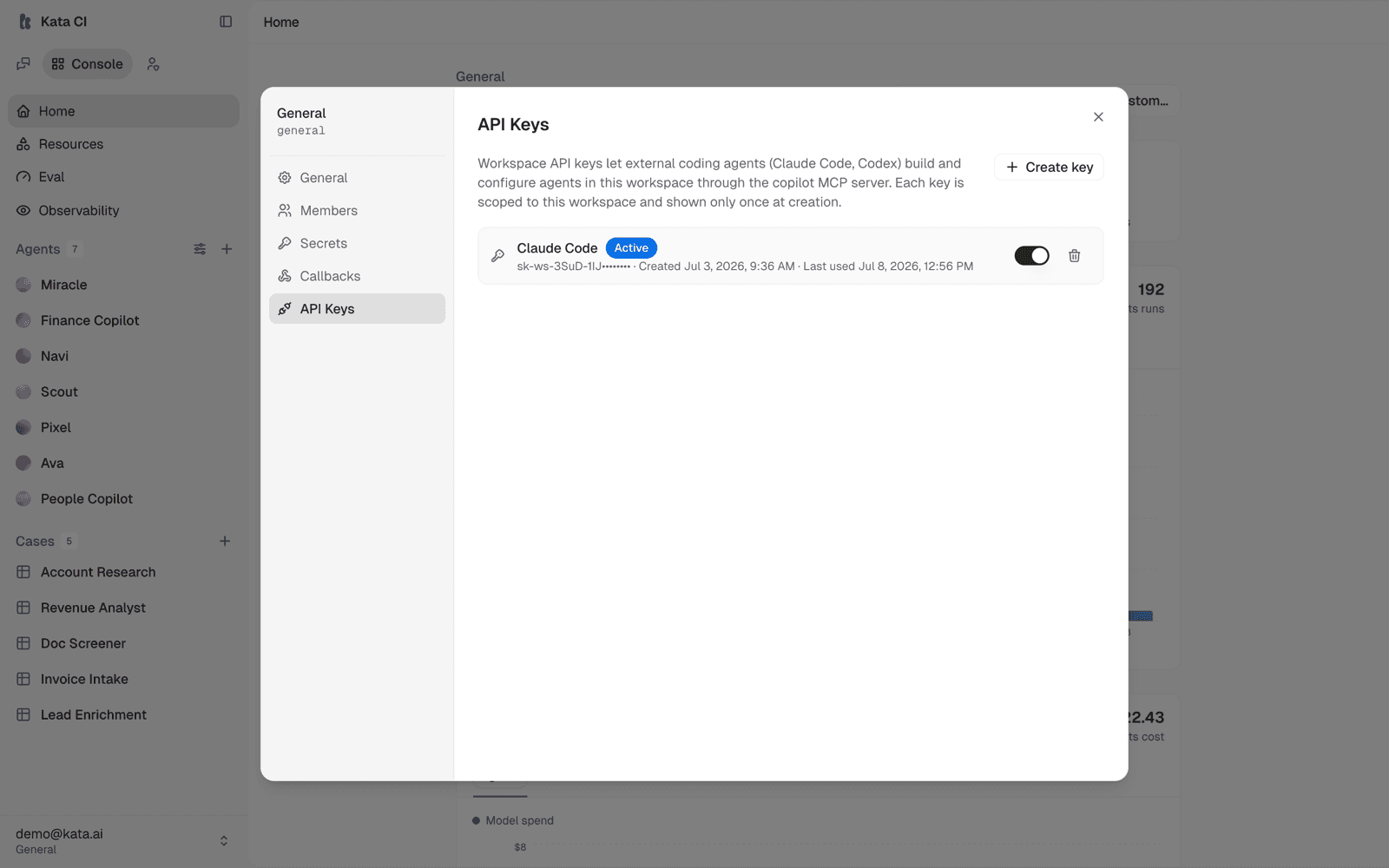
The raw key (sk-ws-...) is shown once; store it safely:
export COPILOT_WS_KEY="sk-ws-..."The key is scoped to one workspace. Everything built through it lands there, and you can revoke it at any time from the same screen.
Add the server to your client.
For Claude Code, in .mcp.json:
{
  "mcpServers": {
    "sebati": {
      "type": "http",
      "url": "https://<your-deployment-host>/v1/mcp/copilot",
      "headers": { "Authorization": "Bearer ${COPILOT_WS_KEY}" }
    }
  }
}
For Codex, in ~/.codex/config.toml:
[mcp_servers.sebati]
url = "https://<your-deployment-host>/v1/mcp/copilot"
http_headers = { Authorization = "Bearer ${COPILOT_WS_KEY}" }
Any other MCP client works the same way: Streamable HTTP transport, bearer auth.
Build in natural language. Your coding agent drives the tools:
Create an agent called "Vendor Review" that evaluates supplier proposals against our procurement rubric. Set up its system prompt, create a knowledge base from the files in ./rubric, bind it, attach the default model, and publish.
What the tools cover
The server exposes the full builder surface as tools:
| Family | What you can do |
|---|---|
| Agents | Create, configure, set prompts and models, toggle features, publish |
| Skills | Discover and read complete canonical skills, create/update, bind and unbind |
| Packs | Create, install, and apply a pack from existing workspace resources in one call |
| Knowledge | Create knowledge bases, ingest content, manage sources, bind |
| MCP servers | Register external tool servers, verify them, bind to agents |
| Apps & capabilities | Discover the catalog, inspect installs, grant and revoke access |
| Channels & Cases | Configure/test channels and create sheet-backed work agents |
The server is stateless: tools take explicit ids, and your workspace comes from the API key. Your coding agent handles id passing automatically.
The MCP server is the authoritative source for workspace resources. A client should use list/get tools before mutating and must not search its local disk, source checkout, sandbox, cache, or session logs for skill bodies or other Frontera configuration.
For the common pack workflow, use create_pack_from_workspace_resources with
existing skill ids or names and optional agent ids. It resolves the complete
skill bodies held by Frontera, creates and installs the pack, and stages agent
application in one call instead of reconstructing resources through dozens of
tool calls.
Two things to know
- Draft and publish still apply. Configuration calls stage into the
agent's draft; nothing goes live until a publish call. The lifecycle is
the same one described in Publish and versions. Use
get_draft_diffto review anddiscard_agent_draftto restore the published state. - Action policy is explicit. When registering an external MCP server for agents to use, you choose read-only or full access at registration time. Decide deliberately, the same way you would in the Console.
- Failures are explicit. Failed tools return an MCP error result and a
structured
success: falsepayload. Do not continue a workflow after a semantic failure just because the transport request completed.