
 Frontera Guide
Workspace administration
Members, roles, keys, and the controls that keep a deployment governed.
Admins keep the deployment safe and organized. Two places matter: the Admin surface (organization-wide governance) and the workspace settings dialog (per-workspace controls, opened from the workspace menu in the bottom-left corner via Manage workspaces).
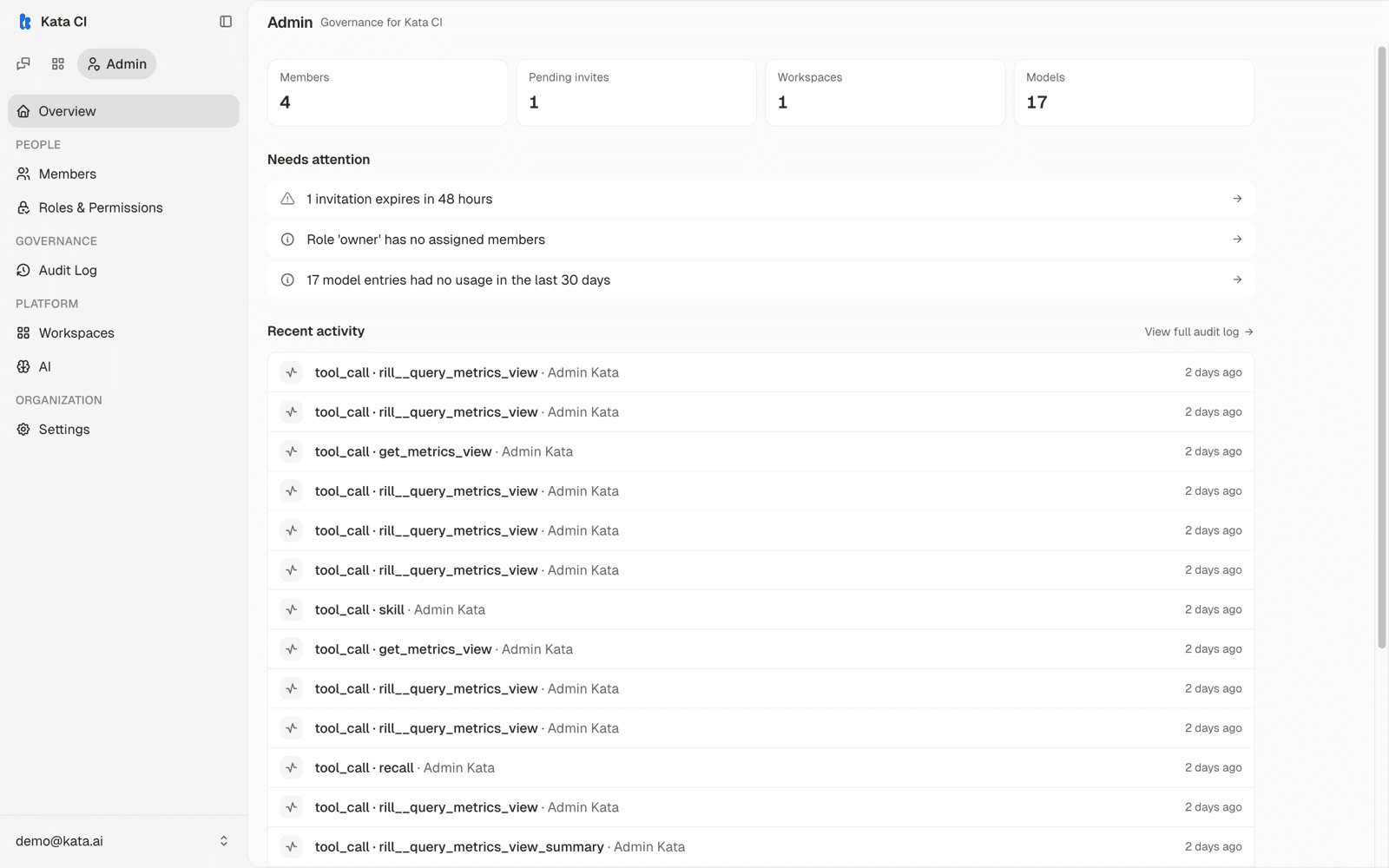
The Admin overview shows member and workspace counts, items that need attention, and a live activity feed from the audit log. Its sections: Members, Roles & Permissions, Audit Log, Workspaces, AI (the model catalog), and organization Settings.
Organizations and workspaces
Your deployment hosts one organization containing one or more workspaces. Everything operational is workspace-scoped: agents, knowledge, channels, Cases, and conversations in one workspace are invisible to another. Use separate workspaces for separate teams or functions, and shared org-level assets only where your deployment defines them.
Members and roles
Invite members by email from Admin → Members. Each member holds a role:
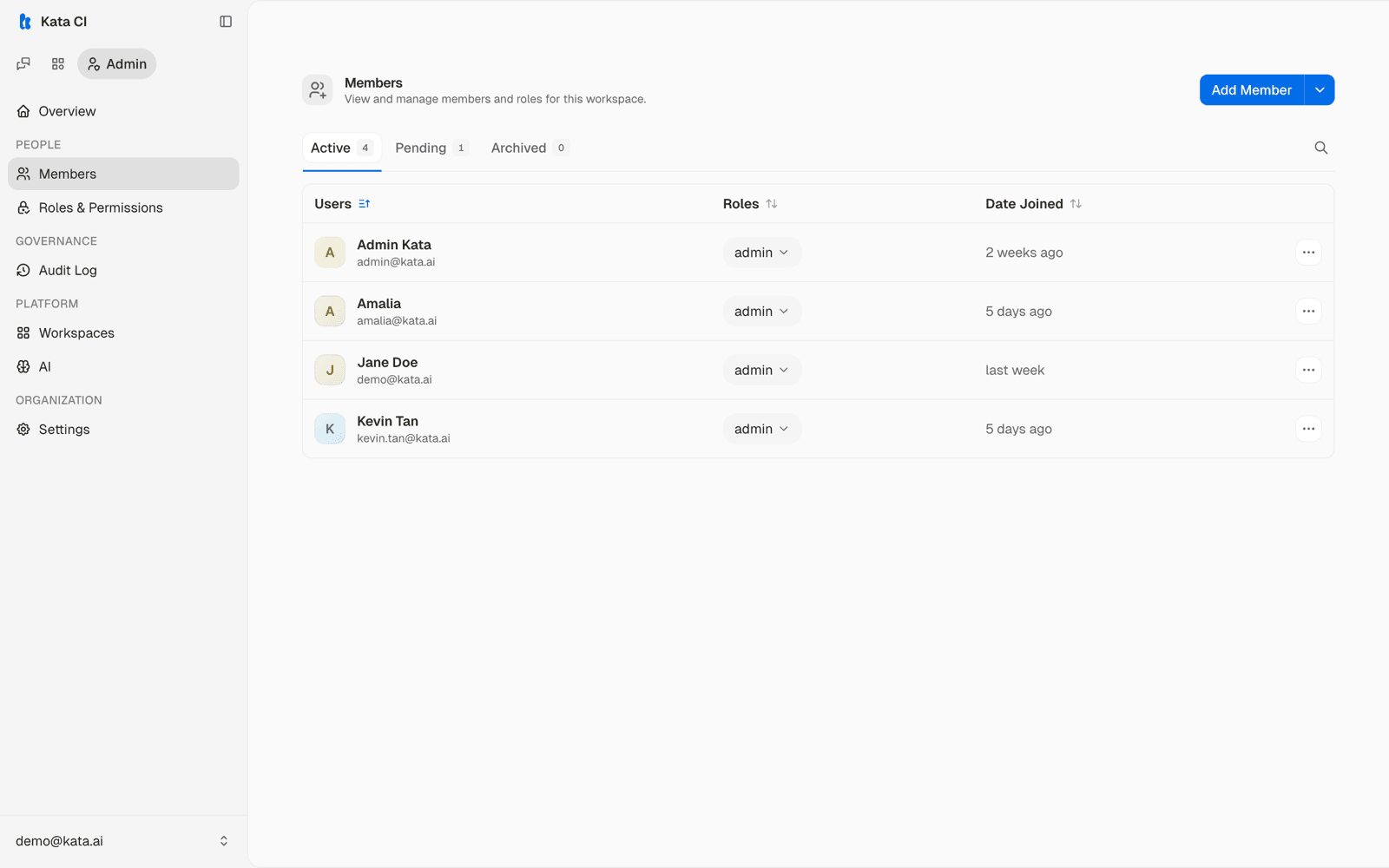
- Owner and admin are built in, with full control over the organization or workspace.
- Custom roles can be defined per organization with granular permissions over agents, knowledge, apps, approvals, secrets, and more, so "can build agents but not manage members" is a role you can actually express.
Grant the least role that lets someone do their job, and prefer creating a custom role over handing out admin.
Workspace settings
The workspace settings dialog carries the per-workspace controls in five tabs: General (name and description), Members, Secrets, Callbacks (push task completions to your systems), and API Keys.
API keys
Two scopes of key, both managed in the platform:
- Workspace keys (
sk-ws-) power builder automation and the Copilot MCP. - Agent keys (
sak_) power chat integrations for one agent.
Keys are shown once at creation and stored only as hashes. Review them periodically and revoke anything unused or unattributed.
Secrets
Credentials for connected apps and MCP servers live in the workspace secret store: write-only after creation, rotated in place, never exposed back through the UI or API.
Usage and limits
Usage records track model consumption and cost per agent and workspace. Where your deployment has usage limits configured, they cap spend at the organization level. Review usage alongside the quality signals in Improve your agents when deciding where to invest.
The audit trail
Consequential actions are recorded: who published which agent version, who approved what, who changed which binding, and when. When something needs explaining after the fact, the trail is where you start.